
An image converter that never uploads your photos.
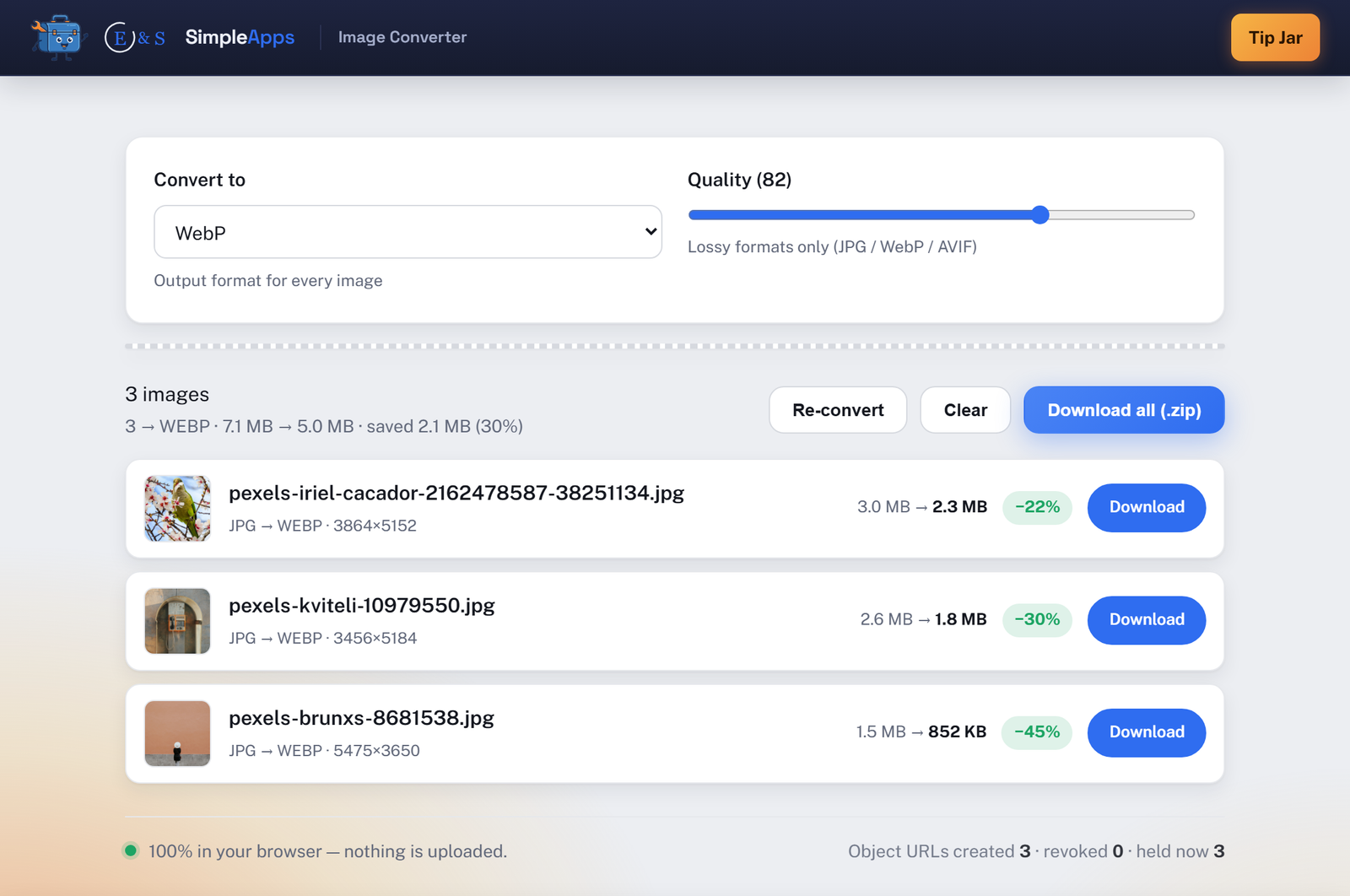
Image Converter is a free, private tool that changes images between PNG, JPG, WebP and AVIF, and turns iPhone HEIC photos into ordinary JPGs, entirely in your web browser. Drop in a batch, pick a format, and download each file or grab them all as a zip. Every image is processed on your own machine. Nothing is uploaded, nothing is saved, and closing the tab erases it all. No install, no account.
Opens instantly · Nothing to install · No sign-up · Works in Chrome, Edge, Firefox & Safari
Private by design, and it never ruins your files
Privacy and file-safety aren't settings here; they're how the app is built.
Your images never leave
Files are read straight from your disk into the page's memory and converted locally with the browser's own canvas engine. Even HEIC photos are decoded on-device, there is no server that receives them, so there is nothing to upload.
Every format, batch at once
Convert to JPG, PNG, WebP or AVIF, and turn iPhone HEIC into JPG. Drop in a whole folder, pick one target format, and download each file or all of them as a single zip.
It never ruins a file
Your originals are never modified. EXIF orientation is honored so nothing exports sideways, transparency is preserved for PNG, WebP and AVIF, and if you pick JPG for a transparent image it warns you before flattening.
How it works
Three steps, zero setup.
Drop in your images
Drag a batch of photos onto the page or click to choose files. They load instantly into the browser, no upload, no waiting on a server.
Pick a format
Choose JPG, PNG, WebP or AVIF. Every image is converted automatically; set the quality for lossy formats if you like.
Download: one or all
Download each converted image, or grab them all as a zip. Close the tab when you're done and everything is gone, nothing was uploaded or saved.
Frequently asked questions
Is Image Converter really private, are my images uploaded?
No. Your images are never uploaded. Image Converter reads your files directly into the browser tab's memory and converts them locally using the browser's own canvas engine. HEIC photos are decoded on-device too. There is no server that receives your images, so there is nothing to upload and nothing to leak.
Which formats can I convert between?
You can convert to JPG, PNG, WebP or AVIF, from those same formats plus GIF, BMP and HEIC/HEIF. A common use is turning iPhone HEIC photos into JPG, or converting PNG and JPG into smaller WebP or AVIF files.
Can it convert iPhone HEIC photos to JPG?
Yes. Drop in a .heic or .heif file and pick JPG (or PNG, WebP, AVIF). The HEIC is decoded entirely in your browser with a built-in decoder, it is never uploaded, and you get an ordinary image back.
Do I need to install anything or create an account?
No install and no account. Image Converter runs entirely in your web browser, just open the page and use it. There is nothing to download and no sign-up.
Will converting damage my original files?
Never. Your original files are never modified or overwritten, the converted image is always a brand-new download. EXIF orientation is honored so photos don't come out rotated, and transparency is preserved for PNG, WebP and AVIF. Choosing JPG for a transparent image flattens it onto white, and the app warns you first.
Why did my AVIF come out as WebP or PNG?
AVIF encoding is only available in Chromium-based browsers (Chrome, Edge). If your browser can't encode AVIF, Image Converter automatically falls back to WebP or PNG and tells you on that image's row, so you always get a working file.
Is Image Converter free?
Yes, Image Converter is completely free to use. It runs in your browser with nothing to buy and no account to create.